How to Install OBB Files on Android 14 and 15 Without Root (When Android/obb Says "Access Denied")
Since the March 2024 security patch, no file manager can write to Android/obb on Android 11 or newer — the "Use this folder" trick is dead. What changed, when you do not need an OBB, and three methods that work on Android 14, 15 and 16: a PC over USB, Shizuku with ZArchiver, or an installer app.

You downloaded a game as an APK plus an OBB file, opened your file manager to drop the OBB into Android/obb, and the folder is either empty, greyed out, or says "access denied". Nothing is broken on your phone. Since a security patch from March 2024, every Android 11 or newer device blocks apps — file managers included — from writing to Android/obb and Android/data, and the old "Use this folder" trick no longer works. This guide explains what changed, when you do not need an OBB at all, and the three ways that still work on Android 14, 15 and 16 without root.
What an OBB file is, in one paragraph
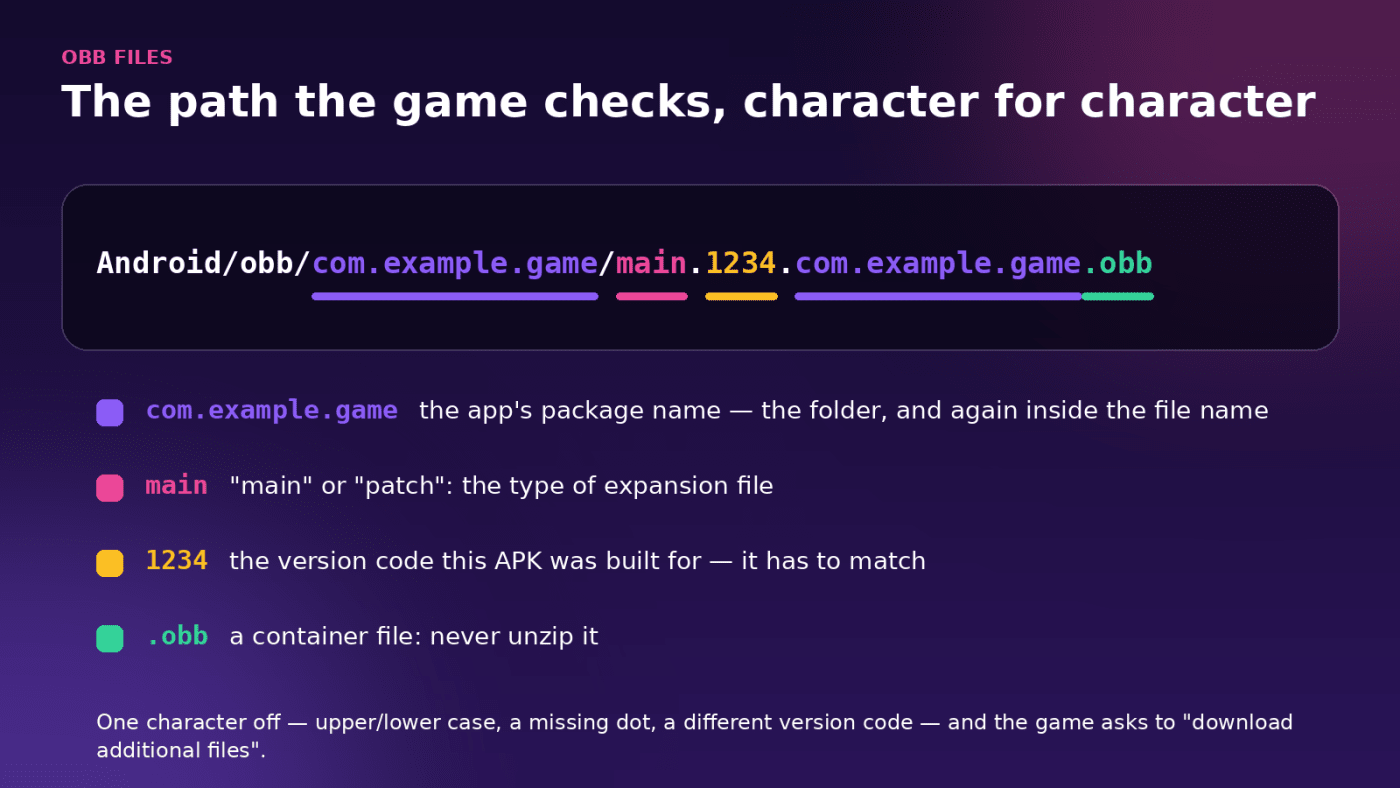
An OBB ("opaque binary blob") is a game's expansion file: the textures, audio and level data that do not fit inside an APK. Google Play delivers it automatically; a sideloaded game cannot download it itself, so you place it by hand. The game then looks for it at an exact path — Android/obb/<package name>/main.<version code>.<package name>.obb — and if the folder or file name is off by one character, it either asks to "download additional files" or crashes on the loading screen.
First: check whether you need an OBB at all
Many current mods do not use one. Modders increasingly pack the expansion data inside the APK itself, which is why some files are huge: Plants vs Zombies 2View
is a single 940 MB APK with no OBB step, and so are Subway SurfersView
and DEAD TARGET: ZombieView
. Every MODKICK listing has an OBB row in its requirements table; when it says "No", install the APK and you are done. This article is for the builds that say "Yes", and for games from other sources that arrive as APK + OBB or as an XAPK bundle.
What changed on Android 11 to 16
- Android 10 and lower: any app with storage permission could write to
Android/obb. Drop the file with any file manager. - Android 11 and 12: scoped storage hid
Android/dataandAndroid/obbfrom apps. File managers used a loophole in the system file picker — requesting the folder with the "Use this folder" prompt — and it worked. - Android 13: the picker refused the top-level
Android/dataandAndroid/obbfolders, but asking for the sub-folder of a specific package still worked, so most guides kept telling you to tap "Use this folder". - Security patch of March 2024 (any Android 11+): that loophole was closed for good. ZArchiver's own documentation now states that granting access to
Android/[data|obb]is no longer possible on patched devices; "All files access" (MANAGE_EXTERNAL_STORAGE) does not help either. On Android 14, 15 and 16 you are always on the patched side.

So on a phone that received any update after spring 2024, there are exactly three routes: a computer over USB, Shizuku, or root. Here are the first two.
Method 1: a computer and a USB cable (works on every phone)
The MTP file-transfer protocol a computer uses is not subject to scoped storage, so Windows Explorer, macOS (with Android File Transfer or OpenMTP) and Linux file managers can all write into Android/obb directly.
- Install the APK on the phone first, but do not open the game yet. Installing creates nothing in
Android/obb; you will make the folder yourself. - Connect the phone with a cable and change the USB mode from "Charging only" to File transfer / Android Auto (swipe down the notification shade and tap the USB notification).
- On the computer, open the phone → Internal shared storage → Android → obb. If the
obbfolder does not exist, create it. - Create a folder named exactly like the game's package name — for example
com.ea.game.pvz2_row— and copy the.obbfile into it. Keep the file name untouched; do not unzip it. - Eject the phone, disconnect, launch the game once. It should go straight to the title screen.

If the computer shows an empty phone, unlock the screen and re-select "File transfer"; on Windows, a missing MTP driver is fixed by installing the phone brand's USB driver or by using a different cable.
Method 2: Shizuku and ZArchiver (no computer after the first setup)
Shizuku gives a normal app the permissions of an ADB shell — the same level a computer gets — by using Android's Wireless debugging. Once it is running, ZArchiver (and other Shizuku-aware file managers such as FV File Explorer or Material Files) can read and write Android/obb again.
- Install Shizuku from the Play Store and ZArchiver (Play Store or its site). Both are free.
- Enable Developer options (Settings → About phone → tap Build number seven times), then Settings → System → Developer options → Wireless debugging → on.
- Open Shizuku → Start via Wireless debugging → Pairing. A notification asks for a pairing code; tap Pair device with pairing code in Developer options → Wireless debugging, copy the six-digit code into Shizuku's notification field. Then tap Start in Shizuku — it should show "Shizuku is running".
- In ZArchiver: Settings → Root → Type of root access → Shizuku, and enable Use for Android/[data|obb] and File operations. Allow the Shizuku permission prompt.
- Browse to
Android/obb, create the package folder if needed, and move the.obbfile into it. Launch the game.

Two things to know: Shizuku stops when the phone reboots, so you repeat step 3 (but not the pairing) next time; and the original Shizuku project is not actively maintained, so if it refuses to start on a very new One UI or Android 16 build, the maintained fork ShizukuPlus is the replacement and works with the same apps.
Method 3: an installer app that handles it
XAPK and APKS bundles are archives that contain the APK and the OBB together. Installer apps — APKMirror Installer, SAI, XAPK Installer — unpack them and try to place the OBB for you. On a patched phone they hit the same wall as any other app unless they can use Shizuku or root, so treat this as a convenience on top of Method 2, not an alternative to it. If the installer says "OBB could not be copied", rename .xapk to .zip, extract it, install the inner APK, and place the OBB with Method 1 or 2.
The game still asks to "download additional files"
Go down this list; one of them is it.
- Package folder name — must be the game's package name, character for character. The APK's package name is on every MODKICK page and inside the XAPK's manifest;
com.gameloft.android.ANMP.GloftA8HMis not the same folder ascom.gameloft.android.anmp.glofta8hm. - File name — must stay
main.<versioncode>.<package>.obb. Some mods ship apatch.<versioncode>...file too; both go in the same folder. - Version code mismatch — the OBB's version code has to be the one this APK was built for. Mixing an OBB from an older download with a newer APK produces exactly this prompt; download both from the same listing.
- Unzipped OBB — an OBB is a container; never extract it.
- Launched too early — if you opened the game before copying the file, it may have created its own empty folder or a half-downloaded file. Force-stop the game, delete what it created, copy the OBB again.
- Free space — the game needs room to read and sometimes unpack the OBB; keep a couple of gigabytes free.
Frequently asked questions
Can a file manager access Android/obb on Android 14 without Shizuku?
Not on a phone with the March 2024 security patch or any later update, which includes every Android 14, 15 and 16 device. The "Use this folder" prompt is refused by the system. Use a computer over USB or Shizuku.
Do I need a PC every time?
No. Shizuku's first pairing is the only setup; after a reboot you tap Start again and ZArchiver has access. If you would rather not set that up, the USB method is a one-minute job per game.
Does root solve it?
Yes — a rooted file manager writes anywhere. But root is overkill for OBB files, voids some banking apps, and is not needed with the two methods above. MODKICK listings mark the rare builds that actually require root.
Why do some big games not have an OBB at all?
Because the modder repacked the expansion data into the APK. It makes the file larger but removes the folder dance entirely, which is why most of our current game listings are single APKs; the install section of each listing says which type you are getting.
Keep reading
 Guide
Guide"App Not Installed"? Every Reason a MOD APK Fails to Install on Android, and the Fix for Each
Signature conflicts, Samsung Auto Blocker, Play Protect's enhanced fraud protection, v7a/v8a mix-ups, truncated downloads, Android 14's old-app block — eleven causes of "App not installed", each with the exact fix, plus what the September 2026 developer-verification change means for APKs.
 Guide
GuideBest Offline MOD APK Games for Android in 2026 (No Internet Needed)
Eleven MOD APK games from our catalogue that play their core mode in airplane mode — Subway Surfers, Hill Climb Racing, Plants vs. Zombies 2, Traffic Rider, DEAD TARGET and more — with what each mod really changes, file size, minimum Android version and the parts that still need a connection.